Loading Studio workspace

HD Photo Converter: Convert Photos to Clear HD Online

Convert blurry, low-resolution images into sharp HD photos with AI. Use our HD Picture Converter online to improve image quality, enhance photo resolution, and make pictures clearer in seconds.

Convert Photos to HD

Why Use Our HD Picture Converter

Turn blurry, low-resolution images into cleaner, sharper HD visuals with AI that boosts clarity, detail, and size without making photos look unnatural.

  • Convert low-quality images into sharper HD photos with AI that improves clarity, refines edges, and brings back detail without heavy manual editing.
  • Upscale small or blurry pictures for social posts, product pages, presentations, and print while keeping textures, colors, and overall image quality natural.
  • Get clean HD results in seconds with an easy online workflow that removes guesswork, saves editing time, and helps your images look ready to use.
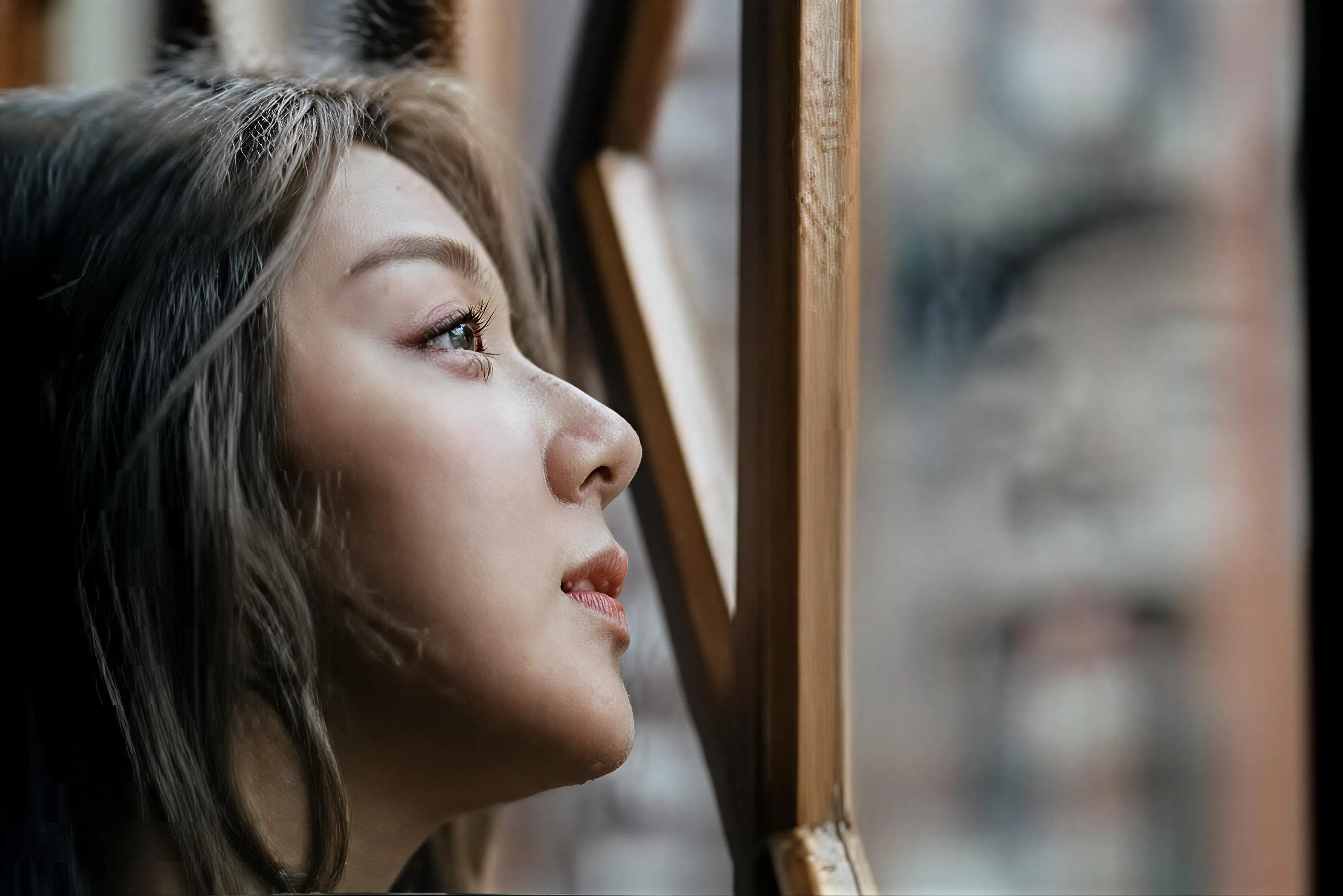
More AI Tools to Improve, Clean Up, and Edit Images Online

Need a more specific fix? Explore these tools to sharpen, restore, or clean up your images.

How it works

How to Convert Image to HD Image Online

Convert image to HD image in three quick steps. Upload, adjust settings, pick JPG or PNG, and create a sharper, cleaner result online.

01

Upload Your Image

Drag and drop your file to upload, then select HD Picture Converter to improve image quality fast.

02

Adjust the Settings

Adjust settings like aspect ratio before you convert. Auto preserves each image's original 1K ratio.

03

Create Your HD Image

Choose JPG or PNG, set resolution up to 4K, then click Create to generate your HD image in seconds.

FAQ

FAQs About Our HD Picture Converter

Get quick answers about how our HD Picture Converter works, pricing, image quality, resolution, speed, formats, and more.

How does the HD Photo Converter improve image quality?

It uses AI to analyze your image and improve the parts that usually make low-quality photos look weak, like soft edges, missing detail, and low clarity. In just one step, it can make a picture look sharper, cleaner, and more visually polished without needing manual editing.

Is the HD Photo Converter free to use?

Yes. Every user can get 30 free credits per day. If you keep using the tool daily, you can unlock up to 100 credits in total, which gives you more room to convert and enhance images without paying right away.

Can I use this HD Picture Converter for old photos?

Yes, absolutely. It can work well on older photos, especially ones that look blurry, faded, soft, or low resolution. While it is not the same as full photo restoration, it can still make old pictures look clearer and easier to use or share.

What's the difference between image upscale and HD Photo Converter?

They are related, but they do not focus on exactly the same thing. Image upscaling is mainly about increasing image size while keeping it usable, while an HD Photo Converter is more focused on making the image itself look clearer, sharper, and more refined overall.

What is the highest resolution this tool can output?

The HD Picture Converter can generate images up to 4K resolution. The final result still depends on the quality of the original file, but the tool is built to give you a much clearer and more usable image than what you started with.

How long does it take to convert a photo to HD?

Usually, it only takes a few seconds. The exact processing time can vary a bit depending on the image size and complexity, but in most cases, you can upload a photo, convert it, and get the result back very quickly.

Can I convert more than one photo at the same time?

Yes. The tool supports batch processing, so you can enhance up to 8 photos at once. That makes it a lot more convenient when you have several images to clean up instead of converting them one by one.

Can I use the HD Photo Converter on my phone?

Yes, you can. The tool works on desktop, tablet, and mobile devices, so you can improve image quality from pretty much anywhere. It is designed to be easy to use even if you are working from a smaller screen.

What file formats can I use for input and output?

You can typically upload common image formats and export your final result as JPG or PNG. These are the most practical options for everyday use, whether you want to share the image online, add it to a design, or save it for later.

Will the tool keep the original shape of my image?

Yes. If you choose Auto in the aspect ratio settings, the tool will preserve the original proportions of your image at 1K. That helps your final result look natural and avoids awkward stretching or cropping during conversion.

Ready to Try It?

Use HD Picture Converter to Improve Image Quality

Convert image to HD online with our HD Picture Converter. Enhance photo resolution, sharpen details, and turn low-quality pictures into clearer, more usable visuals fast.